

Book Your Appointment Online
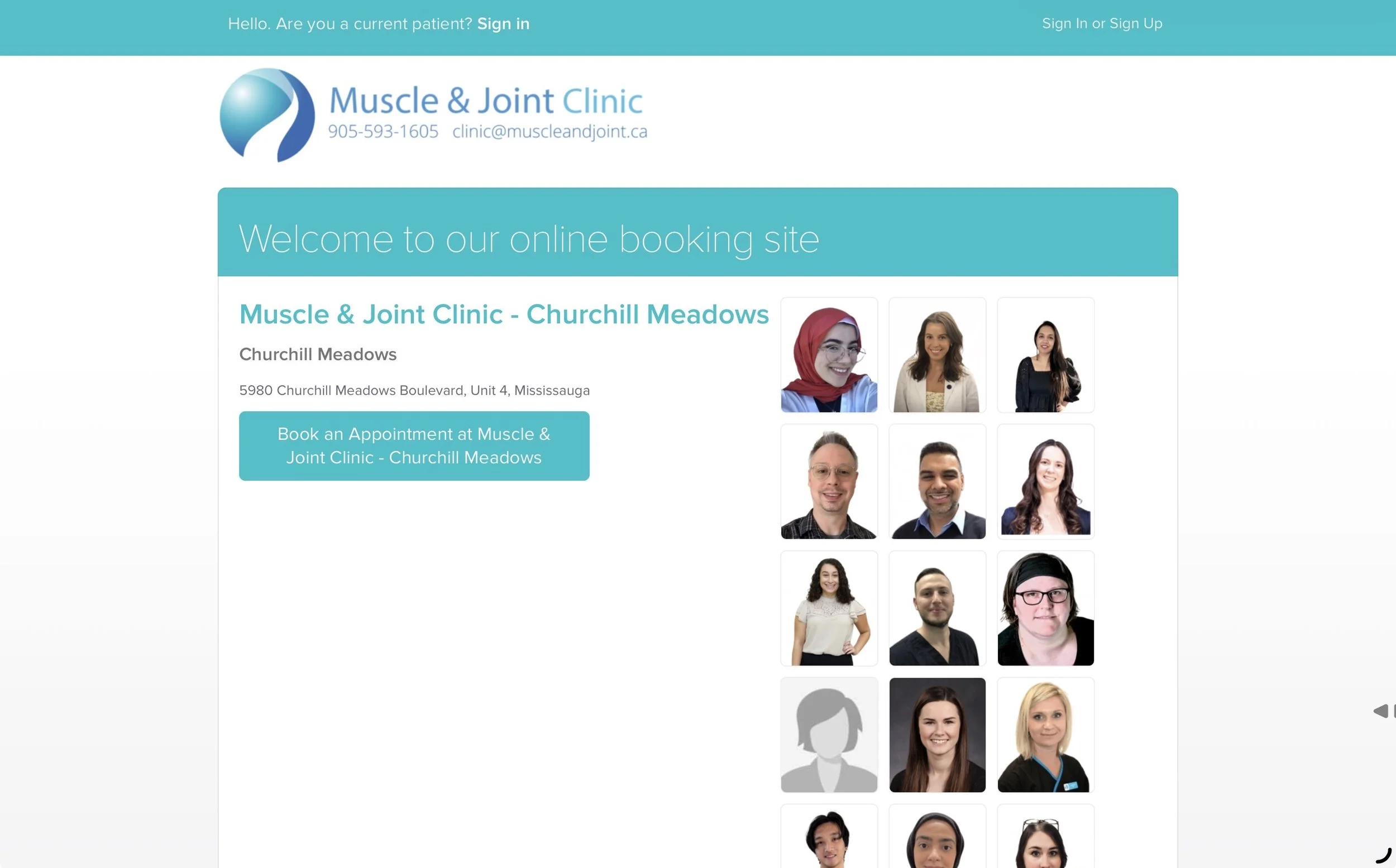
Booking your appointment at Muscle & Joint Clinic is quick, easy, and available 24/7 through our secure online booking system. In just a few clicks, you can view real-time availability, choose your practitioner or service, and reserve your spot instantly.
How To:
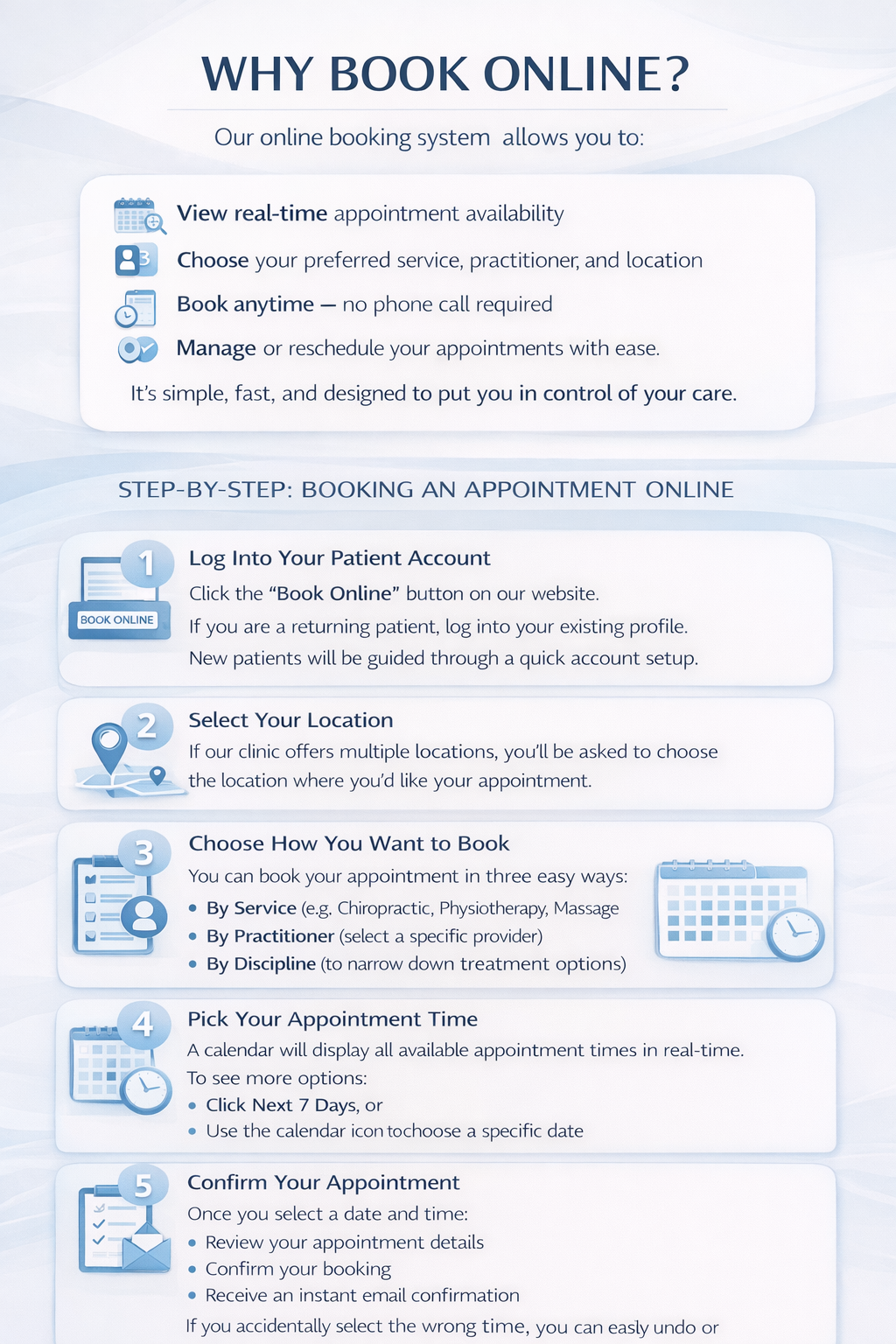
Why Book Online?
Our online booking system allows you to:
• View real-time appointment availability
• Choose your preferred service, practitioner, and location
• Book anytime — no phone call required
• Manage or reschedule your appointments with ease
It’s simple, fast, and designed to put you in control of your care.
Step-by-Step: Booking an Appointment Online
1. Log Into Your Patient Account
Click the “Book Online” button on our website.
If you are a returning patient, log into your existing profile.
New patients will be guided through a quick account setup.
2. Select Your Location
If our clinic offers multiple locations, you’ll be asked to choose the location where you’d like your appointment.
3. Choose How You Want to Book
You can book your appointment in three easy ways:
By Service (e.g., Chiropractic, Physiotherapy, Massage Therapy)
By Practitioner (select a specific provider)
By Discipline (to narrow down treatment options)
Choose the option that feels most comfortable for you.
4. Pick Your Appointment Time
A calendar will display all available appointment times in real-time.
To see more options:
Click Next 7 Days, or
Use the calendar icon to choose a specific date
5. Confirm Your Appointment
Once you select a date and time:
Review your appointment details
Confirm your booking
Receive an instant email confirmation
If you accidentally select the wrong time, you can easily undo or adjust your booking before finalizing.
Booking More Than One Appointment
If needed, you may be prompted to book multiple appointments at the same time (for example, ongoing care or combined services). Follow the on-screen prompts to continue or proceed with a single booking.
Managing Your Appointments
Through your patient profile, you can:
View upcoming appointments
Reschedule or cancel (within clinic policy)
Update personal information
Complete intake forms ahead of your visit